GuideBy Rafał Czarnecki6 min read
How to add captions to a video automatically
In short
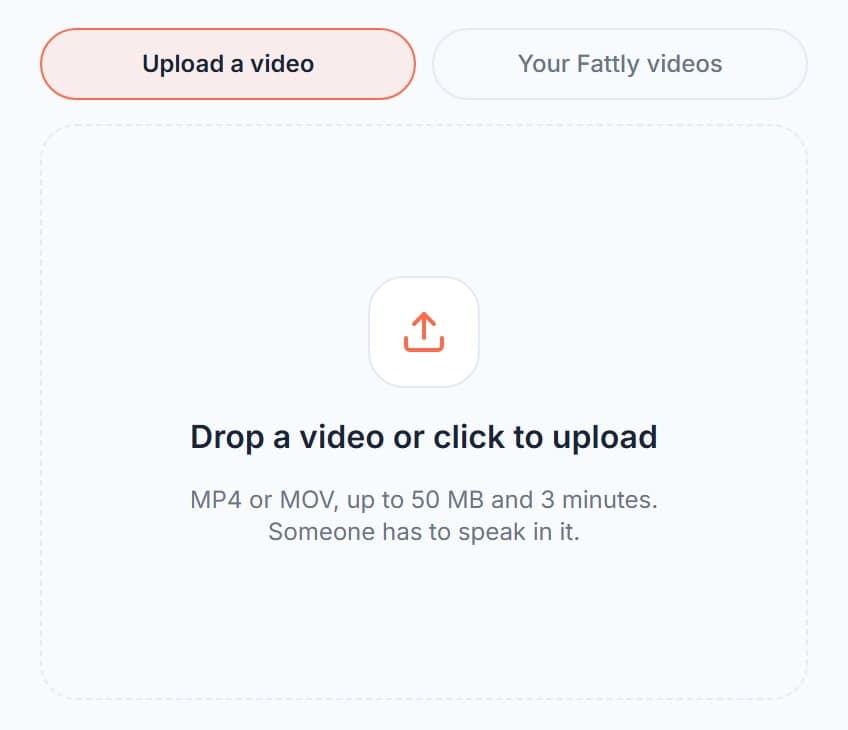
- Upload an MP4 or MOV up to 50 MB and 3 minutes, or pick a clip you already made in Fattly.
- Speech recognition is free (up to 20 times a day) and works in English, Polish, German, Spanish and French.
- Burning the captions into the video costs 5 credits per started minute: 5 for a clip up to 1 minute, 15 for 3 minutes.
- The 10 free credits at sign-up are enough for two clips of up to a minute.
- The captions are burned into the picture, so there is no separate subtitle file to download.

Contents
A lot of people watch short videos and ads with the sound off, so a talking clip without captions loses part of its audience. Captions for video in Fattly turns the speech in your clip into word-by-word captions, lets you fix and style them, and burns them into the MP4. Here is how to do it, what it costs and what to watch out for.
What you need
- A video file: MP4 or MOV, up to 50 MB and 3 minutes long. Or a clip you already made in Fattly, such as an Ad Studio ad.
- Someone speaking in the clip. Captions come from the speech, so music alone gives nothing to caption.
- A Fattly account. Recognising the speech is free, but you need to be signed in.
- The language spoken in the clip: English, Polish, German, Spanish or French.
1. Upload your video or pick one from Fattly
Open the captions tool. On the “Upload a video” tab, drop in your file. If the clip was made in Fattly, open the “Your Fattly videos” tab and pick it from the list instead, with no download and upload in between.
2. Choose the language and recognise the speech
Under “Language spoken in the video” choose the language of the speech, then click “Recognise the speech”. This step is free. The captions come out in the language that is spoken. The tool does not translate them.
3. Fix the text
Speech recognition is good, but it is not perfect, especially with brand names, jargon and people’s names. Tap a caption, or a line in the list below the video, and correct the wording. You can split a caption in two, merge it with the next one or remove it. The editor does not move the timing of words at the moment, so fix the wording, not the timing.
4. Pick a style and place the captions
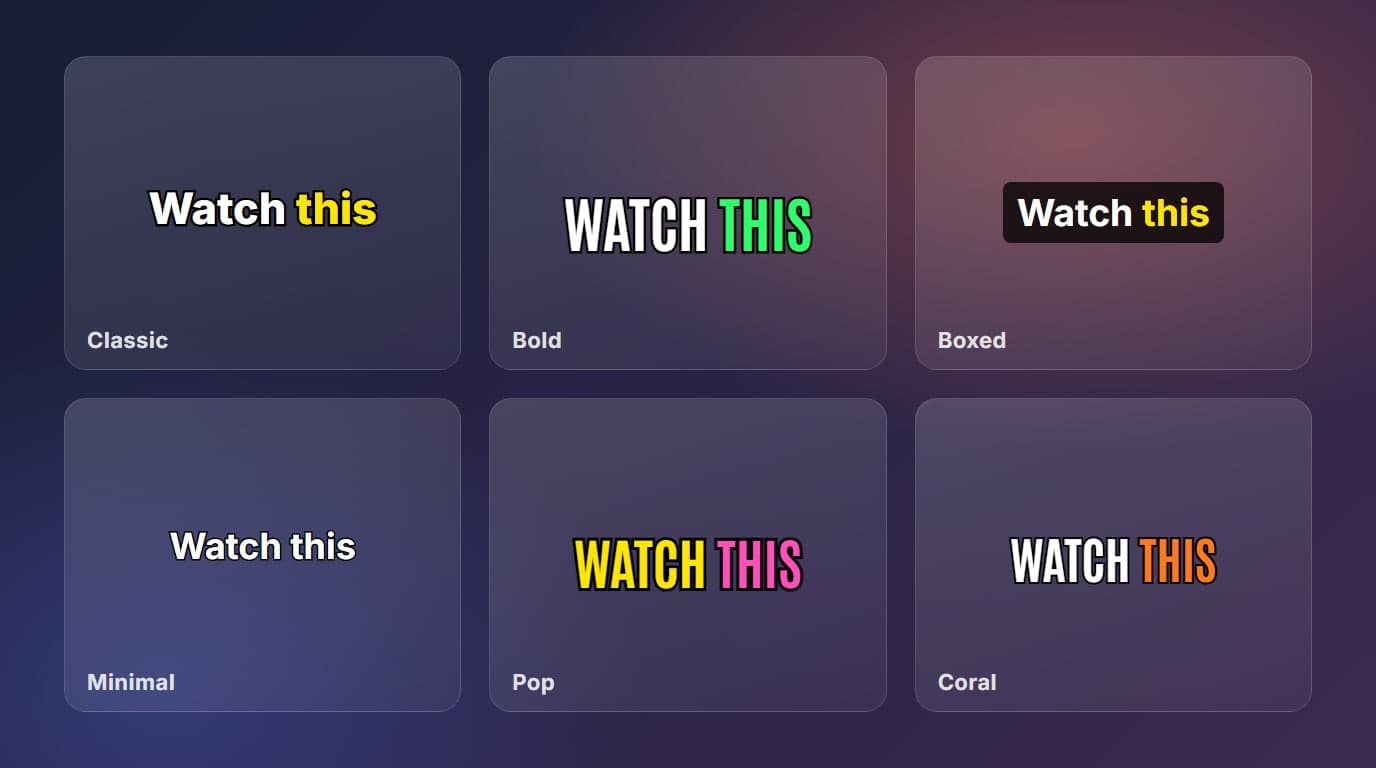
Choose one of six styles, then drag the captions to where you want them on the picture. Change the size with the slider or pinch with two fingers on a phone, and set the text and highlight colours. The editor shows the captions on your clip the way they will be burned in. The next post covers the choices in detail: TikTok-style captions.
5. Burn in the captions and download
Click “Burn in captions”. The captions become part of the picture and you get a normal MP4 with a “Download” button, ready to upload to any platform.
What it costs
| Clip length | Burning in | Recognition |
|---|---|---|
| Up to 1 minute | 5 credits | Free |
| Up to 2 minutes | 10 credits | Free |
| Up to 3 minutes | 15 credits | Free |
You pay 5 credits for every started minute of the clip, and recognition costs nothing up to 20 times a day. The 10 free credits you get at sign-up cover two clips of up to a minute. If a job fails, the credits go back to your account. Current packs are on the pricing page.
Common mistakes
- Burning in without reading the text. One wrong word in a product name is easy to miss and expensive to redo.
- Placing captions where the platform puts its own buttons and description. Keep them in the middle of the frame, away from the bottom edge.
- Choosing the wrong spoken language. If the clip is in Polish and you pick English, the recognition will be poor.
- Too much text on screen. Three to four words at a time is easier to read than a full sentence.
If you make video ads, see how captions fit into the whole flow in captions in video ads. To make the clip itself, start with how to make an AI ad.
Frequently asked questions
Can I add captions to a video for free?
The speech recognition is free, up to 20 times a day. Burning the captions in costs 5 credits per started minute, and the 10 free credits at sign-up cover two clips of up to a minute.
Which languages does it recognise?
English, Polish, German, Spanish and French. You choose the language spoken in the clip, and the captions appear in that language. The tool does not translate them.
Do I get an SRT subtitle file?
No. The captions are burned into the picture of the MP4, so they show on every platform and with the sound off, but there is no separate subtitle file.
How long can the video be?
Up to 3 minutes and 50 MB, as an MP4 or MOV. You can also use a clip you already made in Fattly.
Can I edit the captions?
Yes. You can fix the wording, split and merge captions, drag them to any spot, change the size, colours and style, and mark key words so they stand out. Moving the timing of words is not available yet.
Ready to try?
Add captions to your video