GuideBy Rafał Czarnecki6 min read
How to change the lighting in a video with AI (Relight)
In short
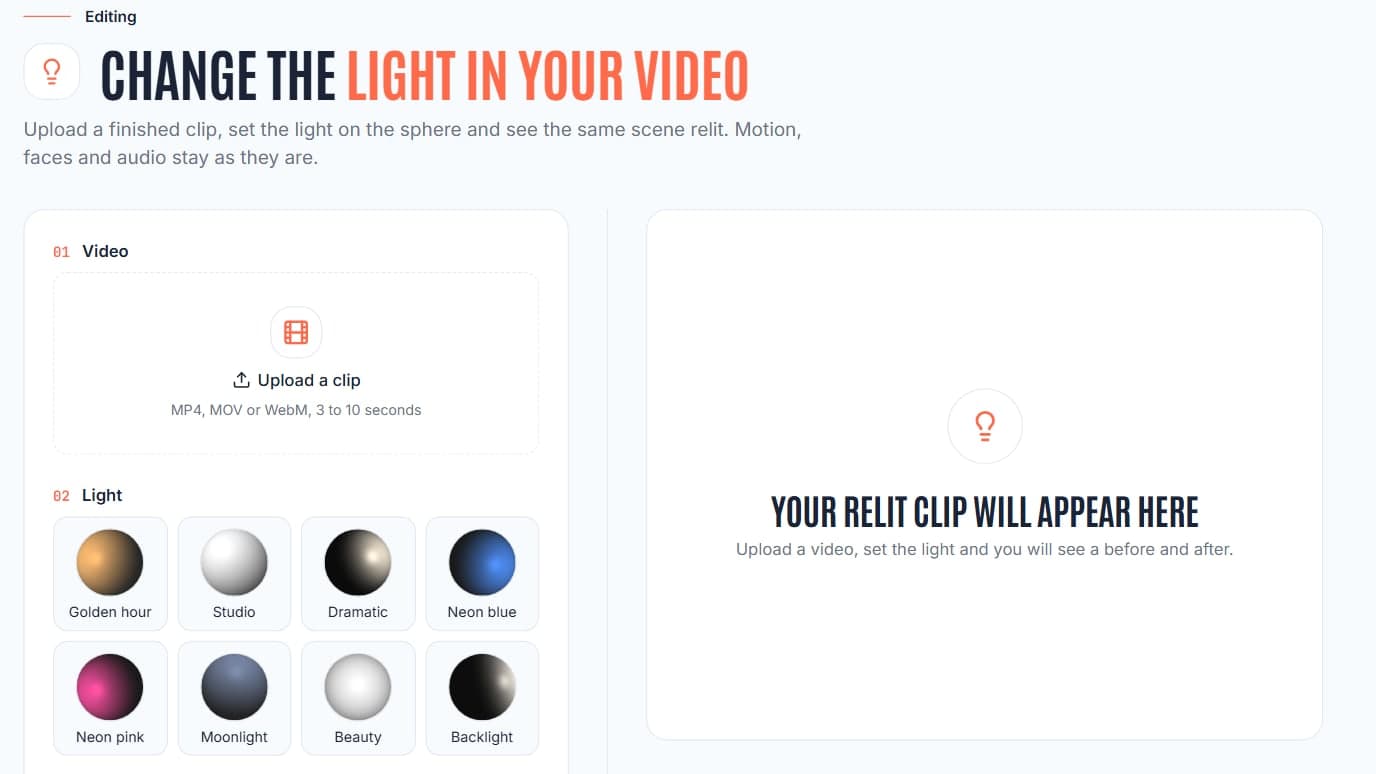
- Upload a finished clip of 3 to 10 seconds (MP4, MOV or WebM), from Fattly or from your phone.
- Set the light by dragging a point on a sphere, or start from 8 presets such as golden hour, studio or neon.
- Price: 10 credits per second of clip, so 30 credits for a 3-second clip and 100 for 10 seconds.
- The 10 free credits at sign-up are not enough for one Relight run, so top up first.
- The result comes back at 768p, next to the original so you can compare. It usually takes a few minutes.
Contents
Lighting decides how a video feels, and it is the one thing you cannot fix after the shoot. Relight is a Fattly tool that does exactly that: you upload a finished clip, set a new light on a sphere, and get the same scene lit a different way. Below is how it works, what it costs in credits, and where it falls short.
What Relight changes and what it leaves alone
- It changes the light: its direction, colour, hardness and strength, plus the fill light that softens the shadows.
- Motion, faces and audio stay as they are, so you are not generating a new video, you are re-lighting yours.
- It works on a finished clip, whether you made it in Fattly (for example in the video generator) or filmed it on a phone.
- The result keeps the proportions of your clip. A vertical 9:16 clip comes back vertical.
1. Upload a clip
Open Relight and click “Upload a clip”. MP4, MOV and WebM files work, and the clip has to be between 3 and 10 seconds long. Longer clips are refused before you pay, so trim them first. Fattly measures the length itself, which is also how the price is worked out.
2. Place the light on the sphere
The sphere is your light stage. Drag the dot around it: a dot on the left lights the scene from the left, a dot at the top lights it from above, a dot near the edge gives a side or back light. What you see on the sphere is what the model is asked to recreate on your subject.
3. Pick a preset or fine-tune
Under “Presets” you get eight ready looks (listed below). Then adjust the light colour, the hardness (hard light gives sharp shadows, soft light gives gentle ones), the light strength and the fill light. Change one slider at a time so you can tell what caused what.
4. Confirm the rights and start
Tick the statement that you have the rights to the video and to the likeness of anyone in it, then click “Relight”. The price is shown next to the button in credits per second. Fattly stores the confirmation with the job.
5. Compare before and after
The tool relights the clip frame by frame, which usually takes a few minutes. You get the new version next to the original, labelled “Before” and “After”, so you can see at once whether the light helped.
Eight presets and what they suit
| Preset | The light | Suits |
|---|---|---|
| Golden hour | Warm amber from the left, fairly soft | Lifestyle, food, outdoor feel |
| Studio | Soft white from the upper left, strong fill | Talking heads, product demos |
| Dramatic | Hard warm white from the right, deep shadows | Teasers, moody scenes |
| Neon blue | Blue from the right | Tech, music, gaming |
| Neon pink | Pink from the left | Fashion, beauty, nightlife |
| Moonlight | Pale cool light from above, dim | Night scenes, mystery |
| Beauty | Soft white from the front, strong fill | Faces, cosmetics, close-ups |
| Backlight | Hard light from the edge, low fill | Rim-lit subjects, hero shots |
What it costs
| Clip length | Credits |
|---|---|
| 3 seconds (the shortest) | 30 |
| 5 seconds | 50 |
| 10 seconds (the longest) | 100 |
You pay 10 credits for every second of the clip, rounded up. If a run fails for a technical reason, the credits go back to your account. The 10 free credits you get at sign-up do not reach 30 credits, so buy a pack first. Current packs are on the pricing page.
Tips for a better result
- Start with a clean source: a sharp clip with a visible subject relights better than a blurry one.
- Pick a light that fits the setting. A neon preset on a daylight beach scene looks like an effect, not like a place.
- Test on a 3-second slice of your clip first. It costs 30 credits and shows whether the look works before you relight the full 10 seconds.
- If the clip is simply too dark, try the Studio preset. Relight is built to change the look of the light, not to rescue footage, so the result is not guaranteed.
Relight is one of several video tools. To make the clip in the first place, see our guide to cinematic AI video and the comparison of AI video models. If the clip needs words on screen, add automatic captions afterwards.
Frequently asked questions
Can I change the lighting in an existing video with AI?
Yes. Upload a finished clip of 3 to 10 seconds to Relight, set a new light on the sphere or pick a preset, and you get the same scene lit differently, next to the original.
How much does Relight cost?
10 credits per second of clip, rounded up: 30 credits for the shortest clip (3 seconds) and 100 for the longest (10 seconds). The 10 free credits at sign-up do not cover one run.
Will my faces, movement and sound change?
The tool is built to keep motion, faces and audio as they are and change only the light. Because the lighting is redrawn, small details can shift, so compare before and after.
How long can the clip be?
From 3 to 10 seconds. Shorter or longer files are refused before you pay. MP4, MOV and WebM are accepted.
Can I use someone else's video?
Only if you have the rights to the video and to the likeness of the people in it. Relight asks you to confirm this before every run.
Ready to try?
Change the light in your video