Add captions to your video automatically
Most people watch ads and short videos with the sound off, so a video without captions loses half its audience. In FATTLY you upload a clip (MP4 or MOV, up to 50 MB and 3 minutes) or pick one you already made here, and the speech is turned into word-by-word captions in English, Polish, German, Spanish or French. Then you edit them like in a social app: fix the text, drag a caption anywhere in the frame, pick one of 6 styles. Recognising the speech is free. You pay only when you burn the captions into the file: 5 credits per started minute, so your 10 free credits cover about two short clips.
What you get with FATTLY captions
Captions from the speech, word by word
We recognise what is said in the clip in English, Polish, German, Spanish or French and split it into short captions you can read at a glance. The speech recognition costs nothing.
An editor you already know how to use
Drag a caption with your finger to any spot, pinch to resize, tap to fix a word. Split and merge captions, centre them and save your favourite style for the next video.
6 styles and the spoken word lights up
Classic, Bold, Boxed, Minimal, Pop and Coral. Change the text and highlight colours, make it ALL CAPS, and mark key words such as a product name so they stand out.
Captions burned into the MP4
The captions become part of the picture, so they show on every platform and with the sound off. The result is a normal MP4 you download and upload anywhere.
How to add captions to a video in 4 steps
- 01
Upload a video or pick one of yours
MP4 or MOV, up to 50 MB and 3 minutes, with someone speaking in it. Or open the Your Fattly videos tab and choose a clip you made here, including older Ad Studio ads.
- 02
Choose the spoken language
English, Polish, German, Spanish or French. FATTLY recognises the speech and splits it into captions. This step is free.
- 03
Edit the captions
Fix the text, drag and resize the captions, pick one of 6 styles, set the colours, mark the words you want to stand out. You see the changes on the video straight away.
- 04
Burn them in and download
Press the burn-in button and the finished MP4 with captions is ready to watch and download. It costs 5 credits per started minute of video.
The kind of video that works for captions
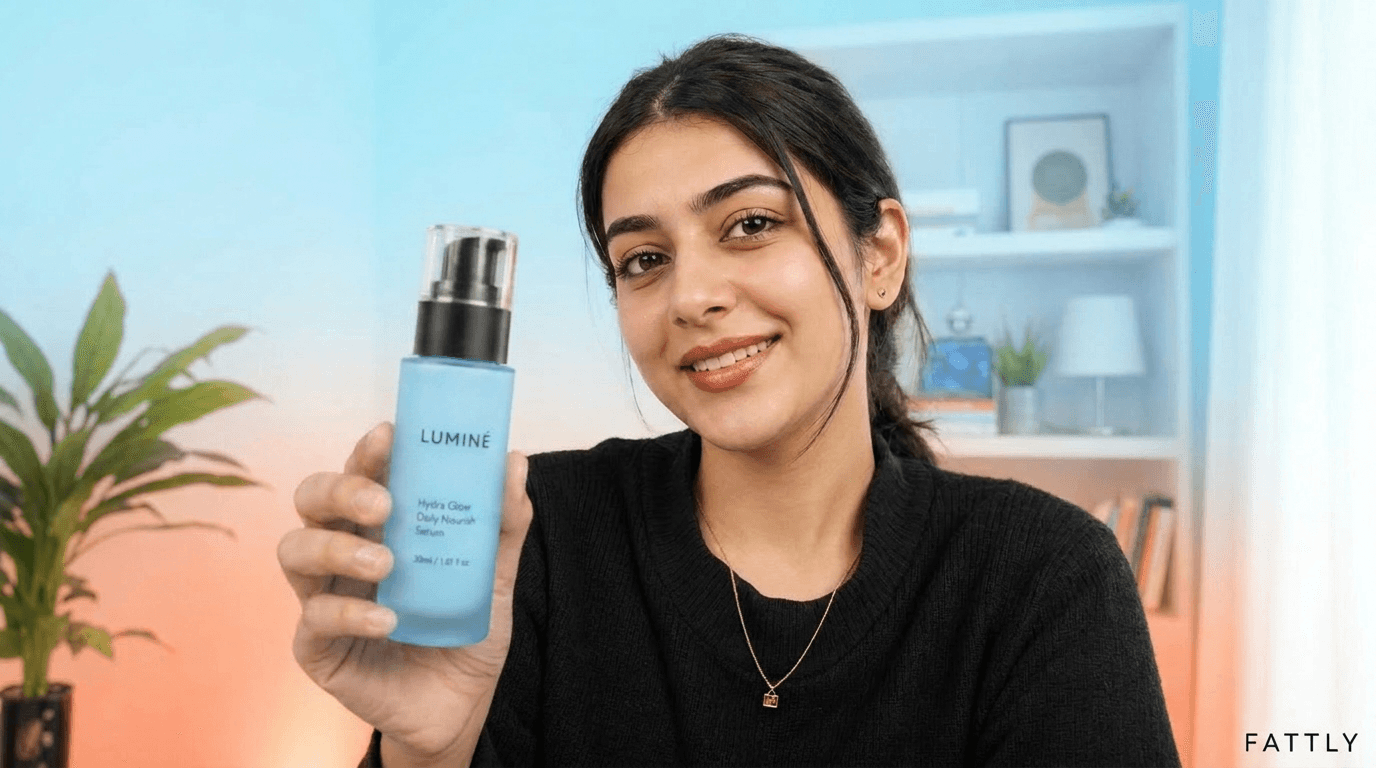
An animation of how the editor works, and reference photos of footage that suits it: one person talking to camera. Neither is a real caption result.


How much automatic captions cost
| Recognising the speech (clip up to 3 minutes, 5 languages) | free |
|---|---|
| Burning in captions, clip up to 1 minute | 5 credits |
| Burning in captions, 2-minute clip | 10 credits |
| Burning in captions, 3-minute clip (the maximum) | 15 credits |
| A burn-in that fails (no speech, outage, content filter) | credits refunded |
You start with 10 free credits and no card, which is enough to burn captions into two clips of up to a minute. Speech recognition is free, up to 20 times a day. Each burn-in is a separate render, so burning again after more edits is charged again. Credits never expire and a subscription is optional. Current credit pack prices: pricing page.
All packs and plansAutomatic video captions: frequently asked questions
How do I add captions to a video automatically?
Upload an MP4 or MOV, or pick a video you made in FATTLY, choose the spoken language and press the button that recognises the speech. You get word-by-word captions, edit them in the editor and burn them into the video. The finished MP4 downloads straight from the page.
Are automatic captions free?
Half of it is. Recognising the speech costs nothing, up to 20 times a day. Burning the captions into the file costs 5 credits per started minute, so a 40-second clip is 5 credits and a 61-second clip is 10. You start with 10 free credits and no card. An account is required, because nothing is generated without a confirmed email.
How long and how big can the video be?
An MP4 or MOV of up to 50 MB and 3 minutes, with someone speaking in it. A video without speech cannot be captioned, because there is nothing to recognise, and the tool tells you so. A longer video can be trimmed first and captioned in parts.
Which languages are supported?
The speech in the video can be in English, Polish, German, Spanish or French. You pick the language yourself before recognising it, so choose the one that is actually spoken. Clear speech with little background noise gives the most accurate text.
Can I edit the captions and change how they look?
Yes. You can fix any word, split or merge captions, drag them anywhere in the frame, resize them and centre them. There are 6 styles (Classic, Bold, Boxed, Minimal, Pop, Coral), colour pickers for the text and the highlight, ALL CAPS, highlighted key words and an animation of the word being spoken. Your style is remembered for next time.
Do I get a subtitle file (SRT), or are the captions burned in?
The captions are burned into the picture of the MP4, so they are visible everywhere, including social feeds that play muted. FATTLY does not export a separate subtitle file (SRT) at the moment. If you need one to switch on and off, this tool is not the right fit.
Does it work on videos I made in FATTLY?
Yes. In the Your Fattly videos tab you pick any finished video, including older Ad Studio ads. Ad Studio also has an Add captions button under a finished ad, which opens the same editor.
What if something goes wrong, and what is in the file?
If the burn-in fails, the credits come back automatically. The caption text and the result go through the same SFW filter as everything else we generate. The MP4 has no visible watermark, and its metadata carries a marker that the file was produced with AI, as with every FATTLY result.
Add captions to your first video
Create an account, claim 10 free credits and caption a clip: recognising the speech is free.