GuideBy Rafał Czarnecki4 min read
How to remove a background from an image with AI
In short
Cutting out a background by hand is fiddly and slow. AI does it in one click with clean edges, even on hair. Here is how to remove a background, step by step.
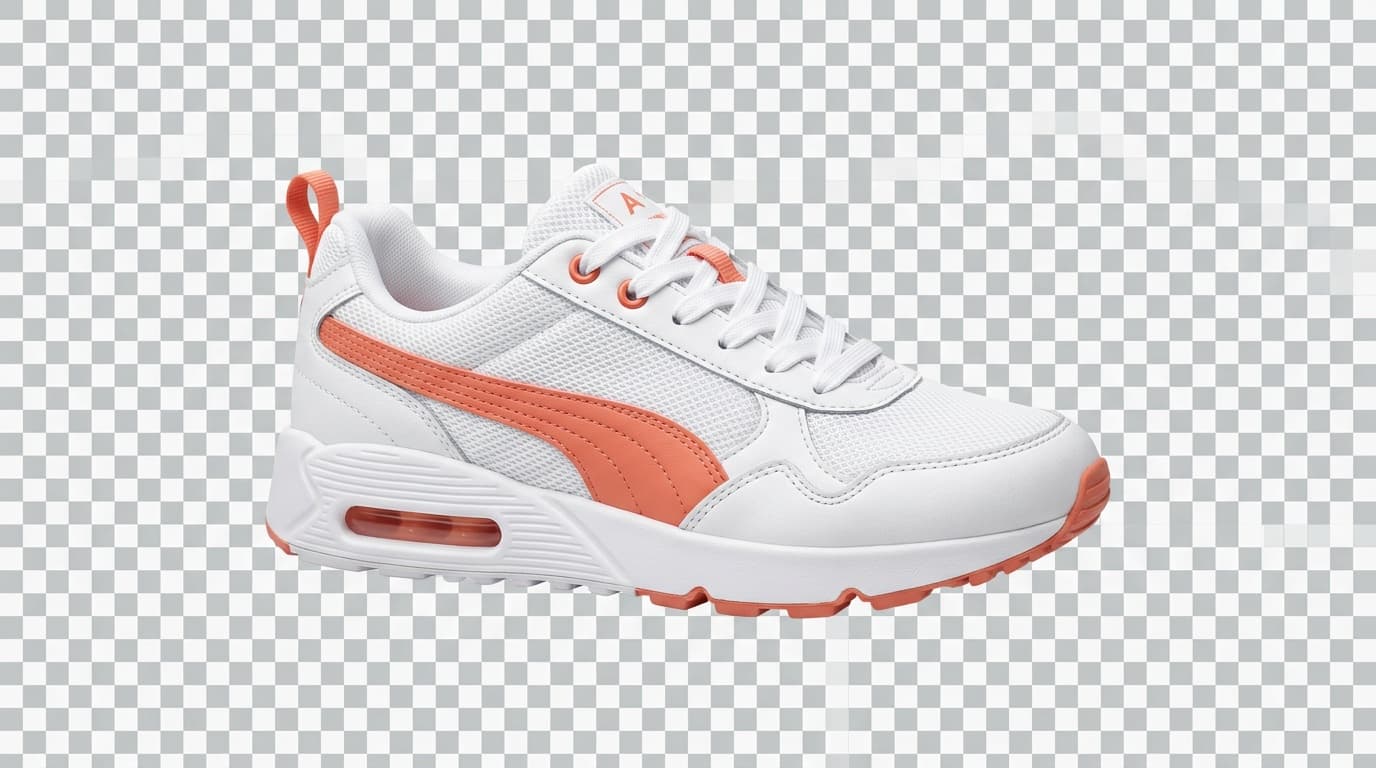
Removing a background by hand — the pen tool, masking, cleaning up stray pixels around hair — is slow and easy to get wrong. AI does it in one click: it detects the subject, cuts it out with clean edges and hands you a transparent PNG. Here is how to remove a background with AI, step by step.
1. Upload your image
Drop in the photo — a product, a person, an object. A clear subject that stands out from the background gives the cleanest cut, but AI copes well with busy scenes and fine detail like hair too.
2. Let the AI cut out the subject
The model finds the main subject and separates it from everything behind it, tracing tight edges automatically. No pen tool, no zooming in to fix stray pixels — it runs in a couple of seconds.
3. Download the transparent PNG
Get a PNG with a transparent background, ready to drop onto any colour, gradient or scene. Use it for a product listing, a thumbnail, a composite, or a clean packshot for an ad.
Summary
Removing a background with AI is now one upload and one click — a clean, transparent cutout with no manual masking. In FATTLY you upload the image and download the PNG.
Frequently asked questions
Does it handle hair and fine edges?
Yes. The model traces fine detail like hair and fur far better than a quick manual selection, and keeps edges clean without a halo.
What file do I get back?
A PNG with a transparent background, so you can place the subject on any colour, gradient or scene without a white box around it.
Can I remove the background from a product photo for a shop?
Yes — that is one of the most common uses. A clean cutout on white or transparent is exactly what marketplaces and listings want.
Ready to try?
Remove a background with AI