GuideBy Rafał CzarneckiUpdated 8 min read
How to animate a photo with AI: photo to video, step by step
In short
In Fattly one photo becomes a clip a few seconds long in 1–3 minutes: upload the photo, describe the motion, pick a model. Below is the whole process, the real costs in credits, five motion prompts to copy and the mistakes that make an animation look fake.
Contents
- What you get
- How much it costs to animate a photo
- Before you start: which photos animate best
- 1. Upload your photo to the video generator
- 2. Choose an image-to-video model
- 3. Describe the motion: 5 prompts to copy
- 4. Set the length and the aspect ratio
- 5. Generate, download and refine
- Faster: ready-made effects and Cinema Studio
- Photos of people: rules to follow
- Common mistakes
- Summary
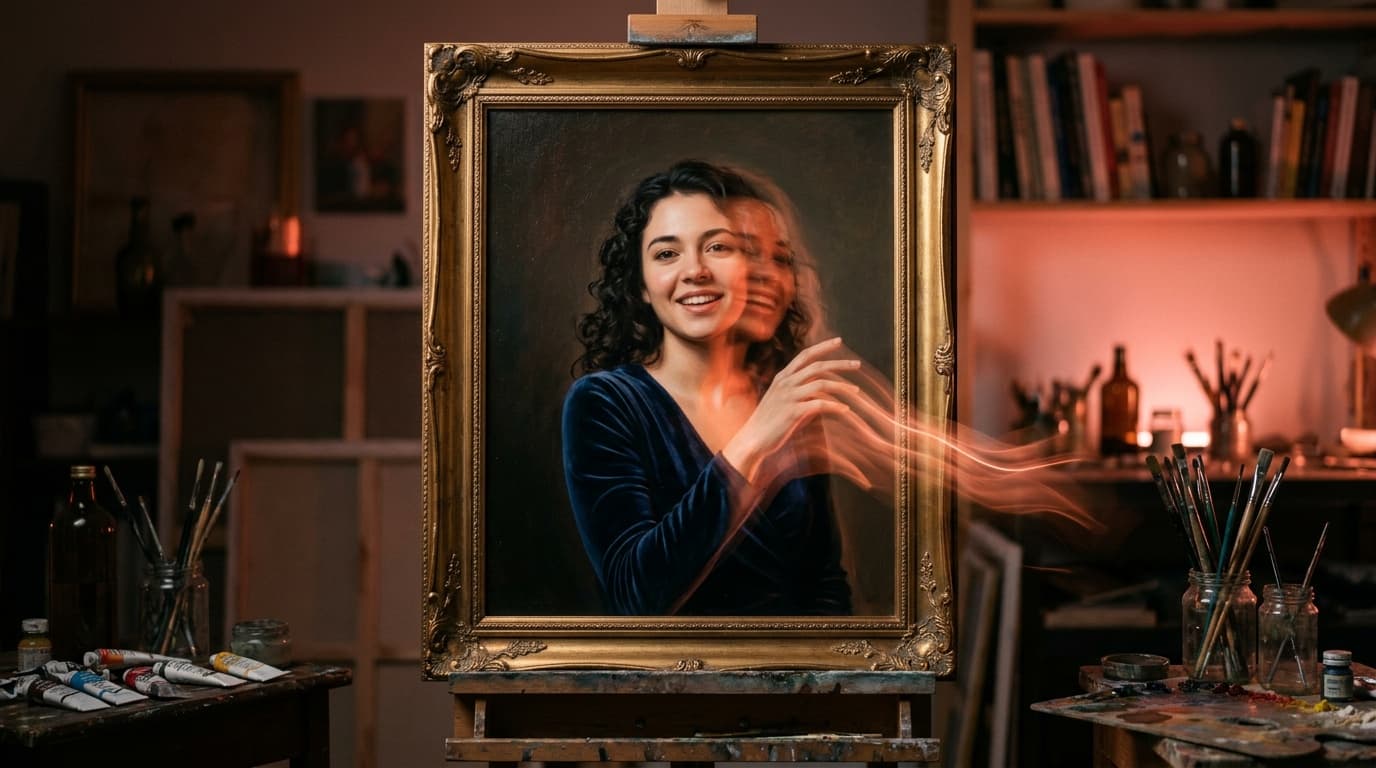
Photo to video AI, also called image to video, takes one still image and turns it into a short clip: a portrait blinks and smiles, a product turns in the light, clouds drift over the mountains. Your photo is the first frame, and the motion comes from your description. Here is how to animate a photo in Fattly, what it costs and whether you can do it for free.
What you get
- An MP4 clip, usually 5 to 10 seconds long depending on the model (up to 30 seconds with Seedance 2.5).
- Landscape 16:9, vertical 9:16 or square 1:1.
- With or without sound. Gemini Omni Flash 1.1 and Seedance 2.5 generate audio together with the picture; LTX-2 and LTX-2.5 make silent clips.
- No visible watermark. The AI label is stored in the file's metadata and in the file name.
How much it costs to animate a photo
You pay credits per clip, with no subscription required, and credits never expire. The price depends on the model and the length, and you see the exact figure on the “Generate video” button before you click. These are all the models in Fattly that animate photos, cheapest first:
| Model | Length and cost | Notes |
|---|---|---|
| Ready-made effect (Trends) | 5 s: 50 credits | No prompt to write, just a photo |
| LTX-2 | 6 s: 30 · 8 s: 40 · 10 s: 50 credits | The cheapest, 1080p, no sound |
| PixVerse v6 | 5 s: 35 · 8 s: 56 credits | Stylized and anime looks |
| MiniMax Hailuo 02 | 6 s: 42 · 10 s: 70 credits | Natural motion, 768p |
| Grok Imagine | 5 s: 45 credits | xAI's video model |
| MiniMax Hailuo 3.0 | 6 s: 48 · 10 s: 80 credits | Newer Hailuo, 768p |
| Kling 3.0 Standard | 5 s: 50 · 10 s: 100 credits | The model behind the ready-made effects |
| LTX-2.5 | 6 s: 60 · 8 s: 80 · 10 s: 100 credits | 720p, no sound |
| Kling 3.0 Pro | 5 s: 80 · 10 s: 160 credits | Cinematic shots, smooth motion |
| Seedance 2.0 Fast | 5 s: 105 · 10 s: 210 credits | Faster version of Seedance 2.0 |
| Gemini Omni Flash 1.1 | 8 s: 144 credits | With sound |
| Seedance 2.0 | 5 s: 150 · 10 s: 300 credits | Cinematic camera motion |
| Seedance 2.5 | 5 s: 300 up to 30 s: 1,800 credits | With sound, up to 50 reference images |
About the free credits, honestly: you get 10 credits at sign-up with no card, but that doesn't buy a clip, because the cheapest one (LTX-2, 6 s) costs 30. With those 10 credits you can prepare the material instead: a starting image in the image generator (from 1 credit) or an upscale of a small, old photo (from 6 credits). The smallest pack is 150 credits, enough for five LTX-2 clips, three ready-made effects or one clip with sound on Gemini Omni Flash 1.1. A failed generation costs nothing, because the credits come back automatically. Current pack prices are on the pricing page.
Before you start: which photos animate best
- Sharp, well lit, with one clear subject. The whole face or product in the frame, nothing cut off at the edges.
- With depth: something in the foreground and a background further back. Then even a slow camera move feels three-dimensional.
- With things that move naturally: hair, clothing, water, clouds, smoke, a flame, steam rising from a cup.
- In the shape of the final video: a vertical photo for Reels and TikTok (9:16), a horizontal one for YouTube (16:9).
- A JPG, PNG or WebP file up to 10 MB. Scan an old print, or photograph it with your phone in daylight, straight on and without flash glare.

1. Upload your photo to the video generator
Open the video generator and drop the file into the “Starting image” field, or pick it from your computer or your phone's gallery. If you made the image in Fattly, open it in your history and click “Turn into video”, and it lands in the generator by itself. Every upload is checked automatically, because Fattly allows safe-for-work (SFW) content only.
2. Choose an image-to-video model
The Language field above the model list stays on English, which shows every video model. If you arrive through “Turn into video” or from our photo to video page, Kling 3.0 Standard (50 credits for 5 s) is already selected. Opened directly, the generator starts on Gemini Omni Flash 1.1 (144 credits), so check the model before you click. “Cheapest first” sorts the list by price.
Which model to pick:
- For a test: LTX-2 at 30 credits. A quick way to check that the photo and the motion prompt work at all.
- Portraits and people: Kling 3.0 Standard (50 credits for 5 s). It's also the model behind the ready-made effects on the Trends page.
- Cinematic shots and products in motion: Kling 3.0 Pro (80 credits) or Seedance 2.0 (150).
- A clip with sound: Gemini Omni Flash 1.1 or Seedance 2.5.
- Watch out: Wan 2.7 makes video from text only. If you pick it with a photo, the generator shows an error and takes no credits.
3. Describe the motion: 5 prompts to copy
The prompt is required; without it the generate button stays inactive. Don't describe what is already in the photo, describe what should move. A good motion prompt has three parts: how the subject moves, how the camera moves (or “static camera”) and what must stay the same. One or two actions are enough. You can write in English or in your own language: prompts in other languages are translated into English automatically before they reach the model.
- Portrait, smile and blink: “The person blinks, smiles softly and turns their head slightly toward the camera. Hair moves in a light breeze. Static camera. Face and features unchanged, realistic motion.”
- Product, slow turn: “The product slowly rotates half a turn on its stand, reflections glide across its surface. Static camera, background unchanged. The shape, color and text on the product stay exactly the same.”
- Landscape, parallax and clouds: “The camera moves forward very slowly, the foreground passes faster than the mountains in the distance. Clouds drift across the sky, grass sways in the wind. Calm motion, no cuts.”
- Old family photo: “The person in the photo breathes gently, blinks and smiles slightly. Very subtle motion, static camera. Keep the black-and-white tones, the grain and the look of an old photograph. Face unchanged.”
- Coffee or food: “Steam rises slowly from the cup while the camera pushes in very slowly toward the table. The rest of the frame stays still, warm light.”
Only have a rough idea? Type a few words and click “Enhance prompt”: it expands them into a full motion description for free. It reads only your text, not your photo, so delete anything from the result that isn't in the picture.

4. Set the length and the aspect ratio
The available lengths depend on the model: Gemini Omni Flash 1.1 always makes 8 seconds and Grok Imagine always 5, while the others offer a choice such as 5 or 10. For a looping post, 5–6 seconds is plenty, and a shorter clip is cheaper. The aspect ratio starts at 16:9, so switch to 9:16 for Reels, TikTok and Stories. Hailuo 02, LTX-2 and LTX-2.5 have no ratio switch, so upload the photo already cropped to the shape you need.
5. Generate, download and refine
Click “Generate video”. A clip is usually ready in 1–3 minutes. The page asks you to keep it open, but if you close the tab nothing is lost: the finished video still lands in your account history, it may just take up to about ten minutes longer. You download an MP4; on a phone, the download button opens the share menu, where you can save the clip to your photos. Your history keeps generations for 30 days, so download the ones you want to keep.
If the motion is too strong or the face changes, don't add words, remove them: keep one action and add “subtle motion” and “face unchanged”. Your prompt and photo stay in the form, so the next try, on a different model too, is one click away.
Faster: ready-made effects and Cinema Studio
Don't want to write a prompt? Go to the Trends page. Upload a photo, click “Make my clip” and in 1–2 minutes you have a 5-second video. There are 7 video effects: Bring an old photo to life, Cinematic moment, Warm hug, Explosion behind, Turn to dust, Color burst and Deep freeze. Each one costs 50 credits.
Cinema Studio gives you more than 30 cinematic looks, including camera moves such as “Slow dolly-in”, “360° orbit” and “Aerial reveal”. It takes a photo as well, and a shot costs 80 credits on Kling 3.0 Pro or 150 on Seedance 2.0.
Photos of people: rules to follow
- Animate your own photos or photos of people who have agreed to it. Our Terms prohibit impersonating others and depicting real people in a misleading way.
- Don't use photos of children.
- With old family photos, talk to your relatives before you post the clip.
- If you publish a realistic clip of a real person, say that it was made with AI. Our Terms and the EU AI Act require it.
- Fattly is safe-for-work only. Prompts, photos and finished clips are checked automatically, and if a result is blocked, your credits come back.
Common mistakes
- Too much motion at once. A smile, a head turn, wind and a camera push-in within five seconds is the fastest route to a distorted face.
- Describing a new scene instead of motion. Change the background first in the “Edit photo” tab of the image generator, then animate the result.
- Small text on a product. Label text can blur as it moves. Choose a gentle turn and add that the text stays unchanged.
- Keeping the default 16:9 for a TikTok or Reels clip.
- Publishing the first take from the cheapest model. Test the motion on LTX-2 for 30 credits, then make the clip people will see on a stronger model.
Summary
Animating a photo with AI takes one good photo, a sentence or two about the motion and a few minutes of waiting. In Fattly the cheapest clip costs 30 credits, a ready-made effect with no prompt 50, and a version with sound from 144. Test on a cheap model first, keep the motion subtle and animate only photos you have the right to use.
Frequently asked questions
Is there a free photo to video AI?
Not entirely. You get 10 free credits at sign-up with no card, but the cheapest clip costs 30 credits (LTX-2, 6 s) and a ready-made effect from Trends costs 50. “Enhance prompt” is free, and a failed generation costs nothing because the credits come back. There is no unlimited free tier: the smallest pack is 150 credits, a subscription is optional, and credits don't expire.
Can I turn a photo into a video online without signing up?
No. It works online in your browser, but generating requires an account with a confirmed email address. That protects the tool from abuse, and you get 10 free credits when you sign up.
Is there a photo to video AI app?
Fattly has no separate app to download. It runs in the browser on your phone and your computer, so there's nothing to install. On a phone you upload a photo from your gallery and save the finished clip through the share menu.
Is there a photo to video AI with no restrictions?
Not here. Fattly is safe-for-work only: photos, prompts and finished clips are checked automatically, and our Terms prohibit impersonating real people or depicting them in a misleading way. Within those rules you can animate any subject, there is no visible watermark and commercial use is allowed.
How long does it take, and how long is the video?
Generating usually takes 1–3 minutes. A clip runs 5 to 10 seconds depending on the model, and up to 30 seconds on Seedance 2.5 (from 300 credits for 5 seconds to 1,800 for 30).
Can I bring an old photo of my grandparents to life?
Yes. Use the ready-made “Bring an old photo to life” effect (50 credits) or write your own prompt asking for subtle motion and keeping the look of the original photograph. Talk to your family before you post it, and say the clip was made with AI.
Can an animated photo have sound?
Yes, if you choose a model that generates audio together with the picture: Gemini Omni Flash 1.1 (144 credits) or Seedance 2.5 (from 300). LTX-2 and LTX-2.5 make silent clips.
Can I use the clip commercially?
Yes, within our Terms and the model providers' terms, for example in a post, an ad or on a store page. There is no visible watermark; the AI label is stored in the file's metadata.
Ready to try?
Animate a photo in Fattly